# How to Create Your Wiki Hero Page on Wiki.ForYouPage.Org

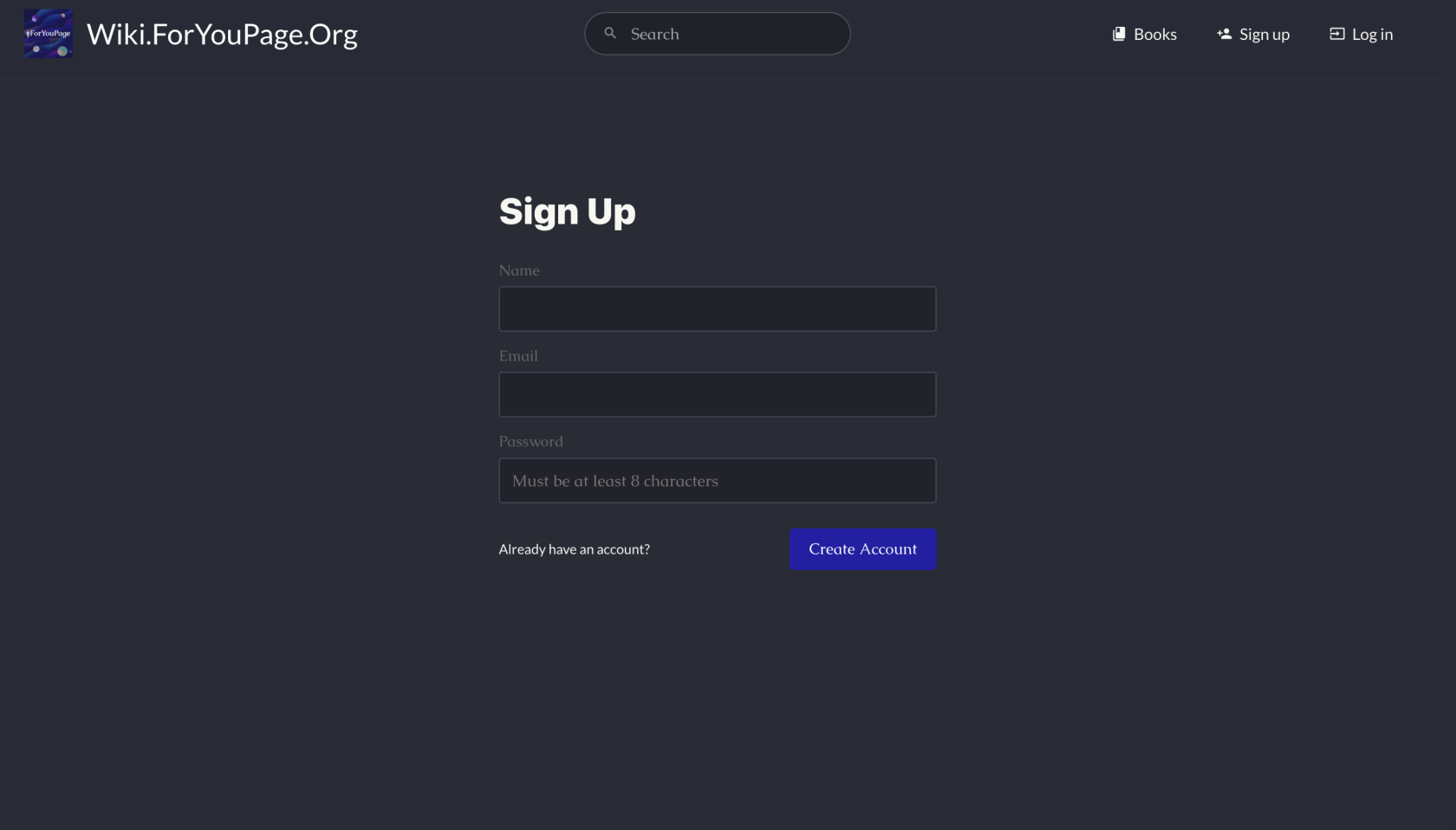
#### <span style="color: rgb(236, 240, 241);">Step 1. Sign Up or Log In</span>

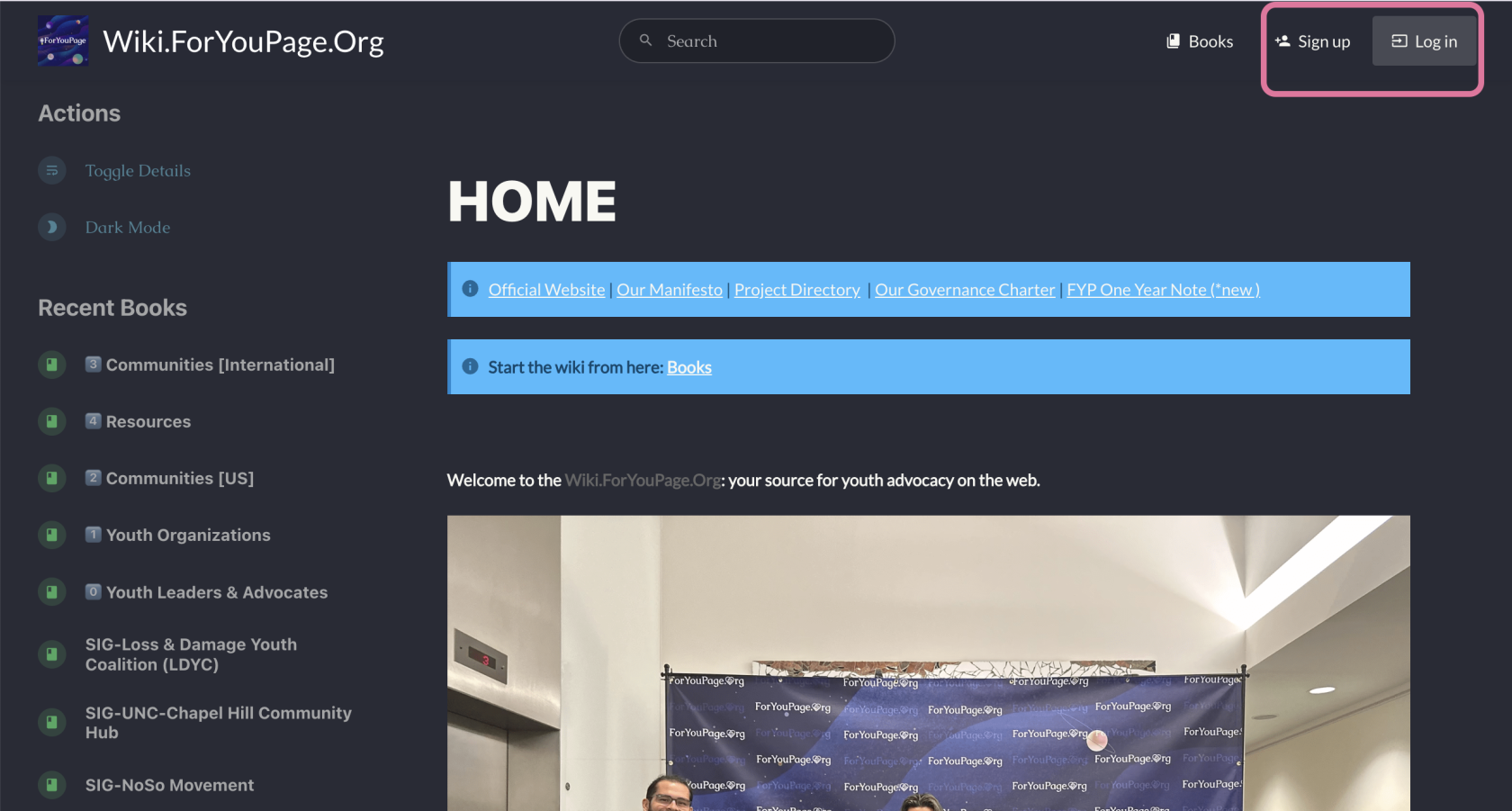
- - <span style="color: rgb(255, 255, 255);">Look for the user icon in the top right corner of the page.</span>
    - <span style="color: rgb(255, 255, 255);">If you don't have an account, click "Sign Up" and follow the registration process.</span>
    - <span style="color: rgb(255, 255, 255);">If you already have an account, click "Log In" and enter your credentials.</span>

[![wiki 1.png](https://wiki.foryoupage.org/uploads/images/gallery/2024-09/scaled-1680-/3VOQoGXMY5qS4M53-wiki-1.png)](https://wiki.foryoupage.org/uploads/images/gallery/2024-09/3VOQoGXMY5qS4M53-wiki-1.png)

[![wiki 2.png](https://wiki.foryoupage.org/uploads/images/gallery/2024-09/scaled-1680-/yviAY2IdSyyNclWV-wiki-2.png)](https://wiki.foryoupage.org/uploads/images/gallery/2024-09/yviAY2IdSyyNclWV-wiki-2.png)
#### <span style="color: rgb(236, 240, 241);">Step 2. Navigate to the Youth Leaders &amp; Advocates Book</span>

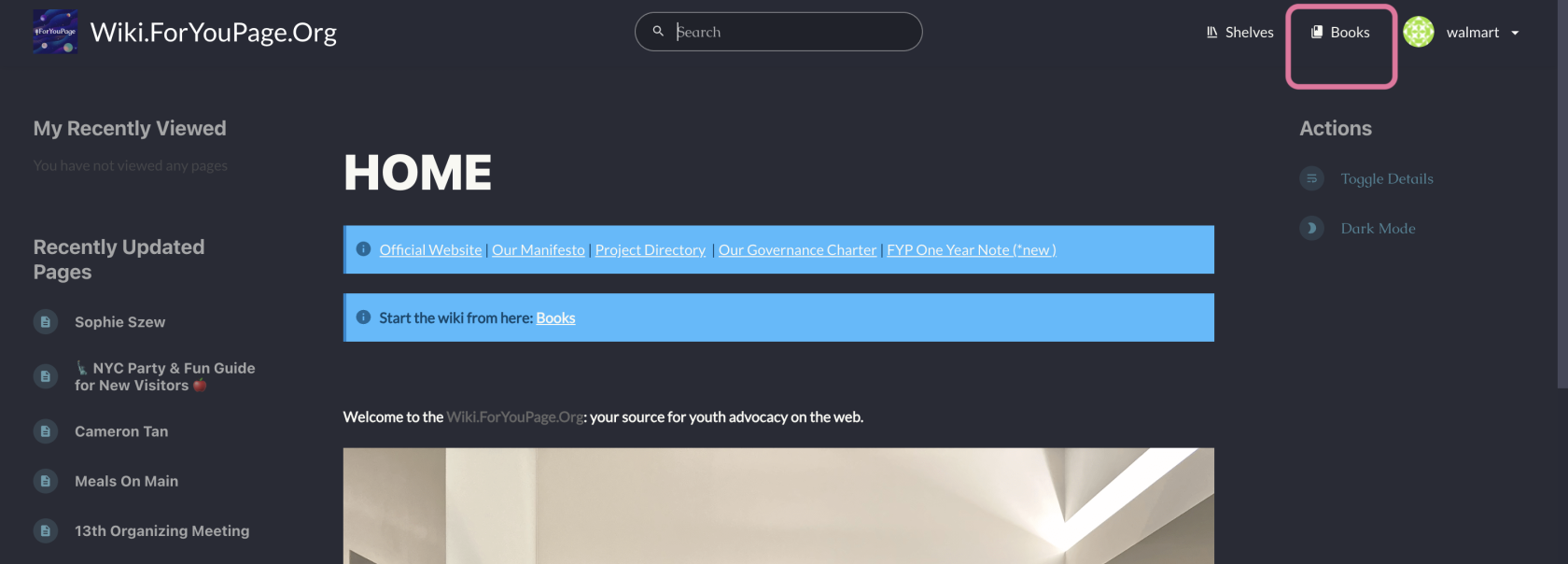
- - <span style="color: rgb(255, 255, 255);">Click on "Books" in the top navigation bar.</span>
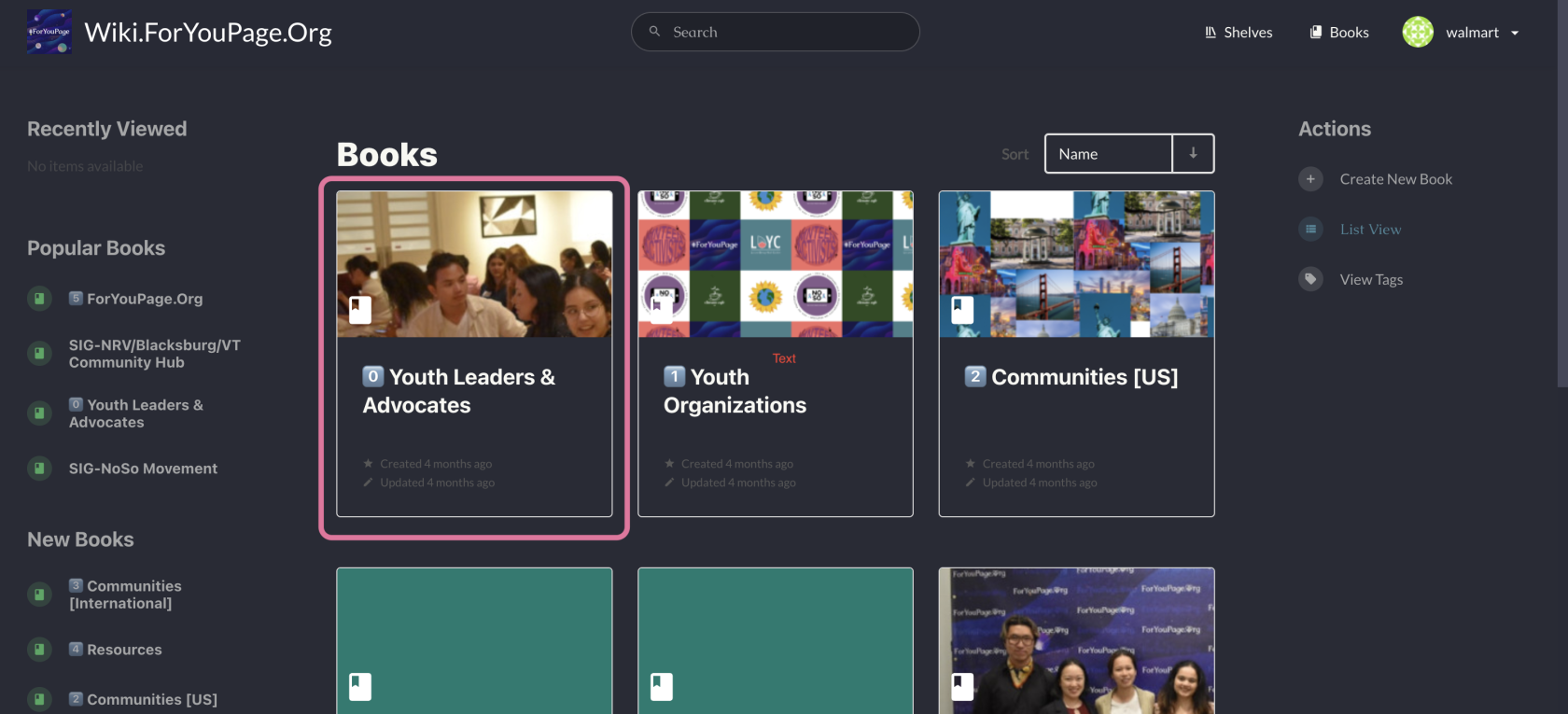
    - <span style="color: rgb(255, 255, 255);">Scroll through the list or use the search function to find "Youth Leaders &amp; Advocates".</span>
    - <span style="color: rgb(255, 255, 255);">Click on the book to open it.</span>
- <span style="color: rgb(236, 240, 241);">[![wiki 3.png](https://wiki.foryoupage.org/uploads/images/gallery/2024-09/scaled-1680-/HZsYIe3fIhN2CVV5-wiki-3.png)](https://wiki.foryoupage.org/uploads/images/gallery/2024-09/HZsYIe3fIhN2CVV5-wiki-3.png)</span>

[![wiki 4.png](https://wiki.foryoupage.org/uploads/images/gallery/2024-09/scaled-1680-/fSYZvdjr7PU5px9g-wiki-4.png)](https://wiki.foryoupage.org/uploads/images/gallery/2024-09/fSYZvdjr7PU5px9g-wiki-4.png)

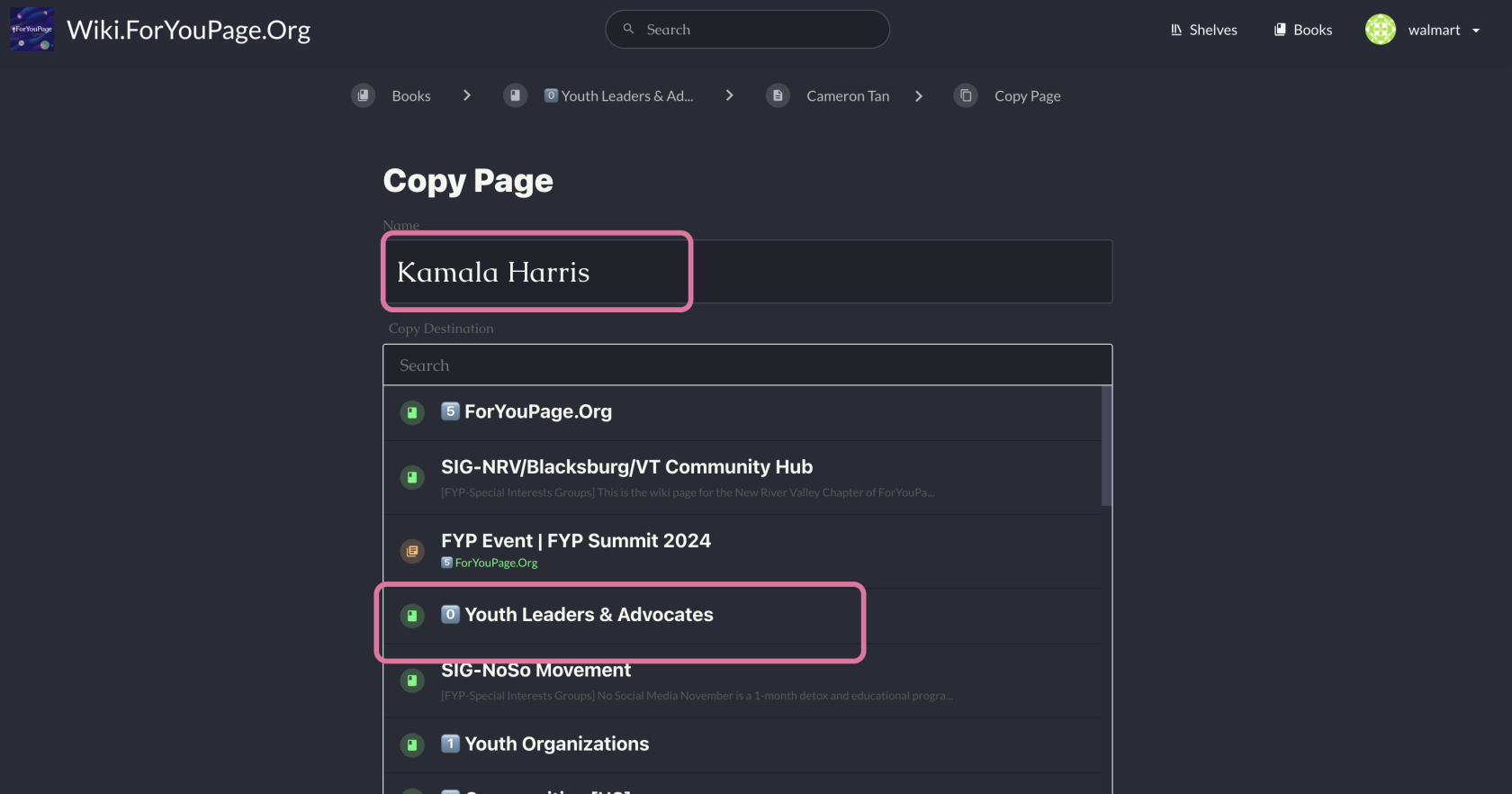
#### <span style="color: rgb(236, 240, 241);">Step 3. Make a Copy of the Template  
</span>

- <span style="color: rgb(255, 255, 255);">Inside the "Youth Leaders &amp; Advocates" book, locate the template page or click here [https://wiki.foryoupage.org/books/0-youth-leaders-advocates/page/template](https://wiki.foryoupage.org/books/0-youth-leaders-advocates/page/template) .</span>
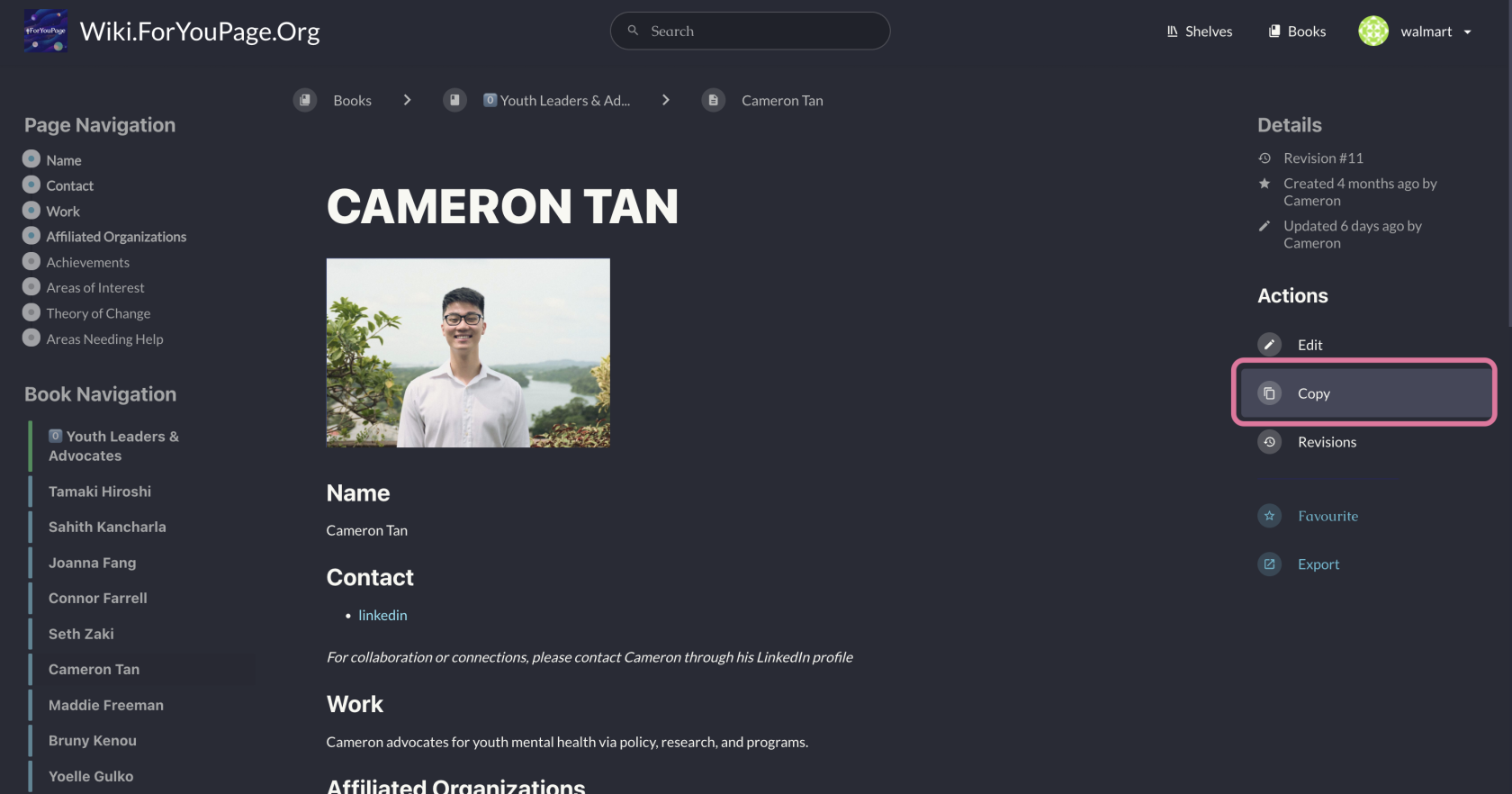
- <span style="color: rgb(255, 255, 255);">Click on the "Copy" button or option associated with the template.</span>
- <span style="color: rgb(255, 255, 255);">This will create a new page based on the template.</span>

#### <span style="color: rgb(236, 240, 241);">  
</span>[![wiki 5.png](https://wiki.foryoupage.org/uploads/images/gallery/2024-09/scaled-1680-/T1EBpSHKsf92fNW2-wiki-5.png)](https://wiki.foryoupage.org/uploads/images/gallery/2024-09/T1EBpSHKsf92fNW2-wiki-5.png)

#### <span style="color: rgb(236, 240, 241);">Step 4. Name Your Page</span>

- - <span style="color: rgb(255, 255, 255);">When prompted, enter your full name as the title of your new page.</span>
    - <span style="color: rgb(255, 255, 255);">Ensure you're still within the "Youth Leaders &amp; Advocates" book when creating your page.</span><span style="color: rgb(236, 240, 241);">  
        </span>

<span style="color: rgb(236, 240, 241);">[![wiki 6.png](https://wiki.foryoupage.org/uploads/images/gallery/2024-09/scaled-1680-/BtWYHB1Jl4cABV4i-wiki-6.png)](https://wiki.foryoupage.org/uploads/images/gallery/2024-09/BtWYHB1Jl4cABV4i-wiki-6.png)</span>

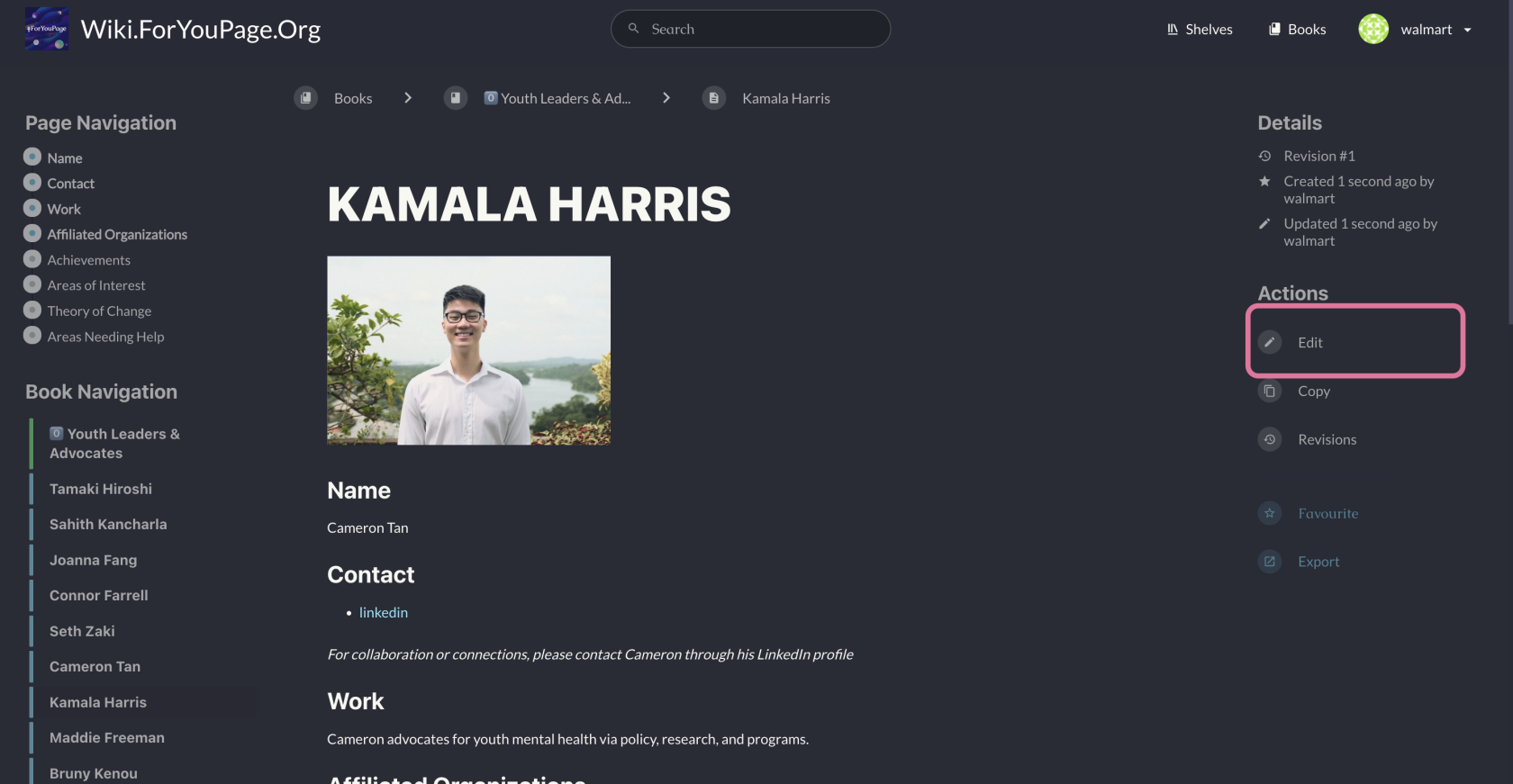
#### <span style="color: rgb(236, 240, 241);">Step 5. Edit Your Page</span>

- - <span style="color: rgb(255, 255, 255);">Once your page is created, click the "Edit" button, typically located near the top of the page.</span>
    - <span style="color: rgb(255, 255, 255);">You'll enter the editing interface where you can modify the content.</span><span style="color: rgb(236, 240, 241);">  
        </span>
    - #### <span style="color: rgb(236, 240, 241);">[![wiki 7.png](https://wiki.foryoupage.org/uploads/images/gallery/2024-09/scaled-1680-/wTq24D0qQoA7Hnq1-wiki-7.png)](https://wiki.foryoupage.org/uploads/images/gallery/2024-09/wTq24D0qQoA7Hnq1-wiki-7.png)</span>

#### <span style="color: rgb(236, 240, 241);">  
</span>

#### <span style="color: rgb(236, 240, 241);">Step 6. Add Your Content</span>

- Fill in the following sections using the template structure:  
    
    - <span style="color: rgb(236, 240, 241);">Name: Your full name</span>
    - <span style="color: rgb(236, 240, 241);">Contact: Your preferred method of contact (e.g., LinkedIn profile)</span>
    - <span style="color: rgb(236, 240, 241);">Work: A brief description of your advocacy work</span>
    - <span style="color: rgb(236, 240, 241);">Affiliated Organizations: List any organizations you're associated with</span>
    - <span style="color: rgb(236, 240, 241);">Projects: Describe your current or past projects</span>
    - <span style="color: rgb(236, 240, 241);">Needs/Support: Mention any help or resources you're looking for</span>
    - [<span style="color: rgb(236, 240, 241);">Privacy Policy</span>](https://wiki.foryoupage.org/books/5-foryoupageorg/page/fyp-wiki-privacy-policy)

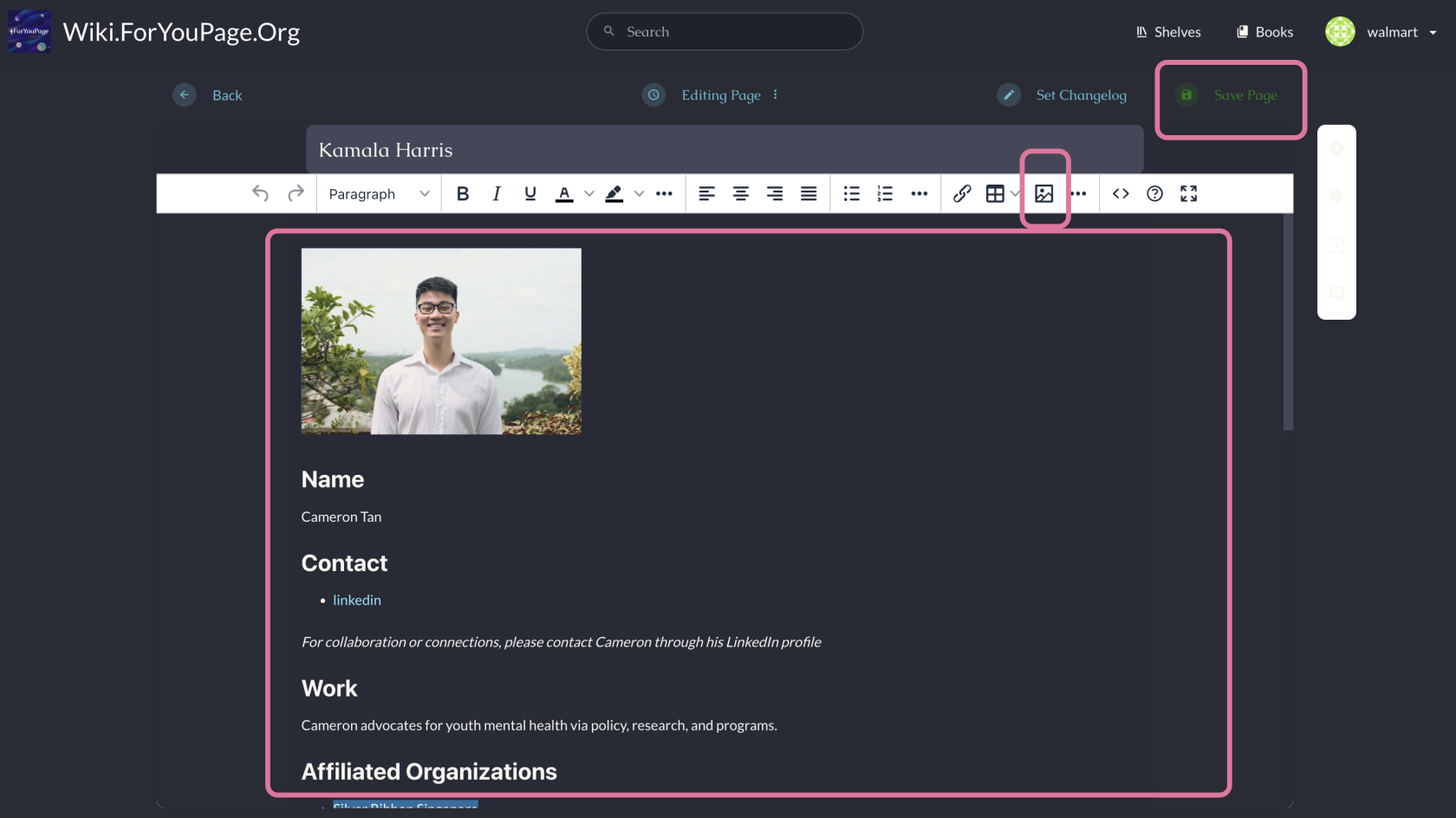
#### <span style="color: rgb(236, 240, 241);">Step 7. Add a Profile Picture</span>

- <span style="color: rgb(255, 255, 255);">Look for an "Add Image" or camera icon in the editing toolbar.</span>
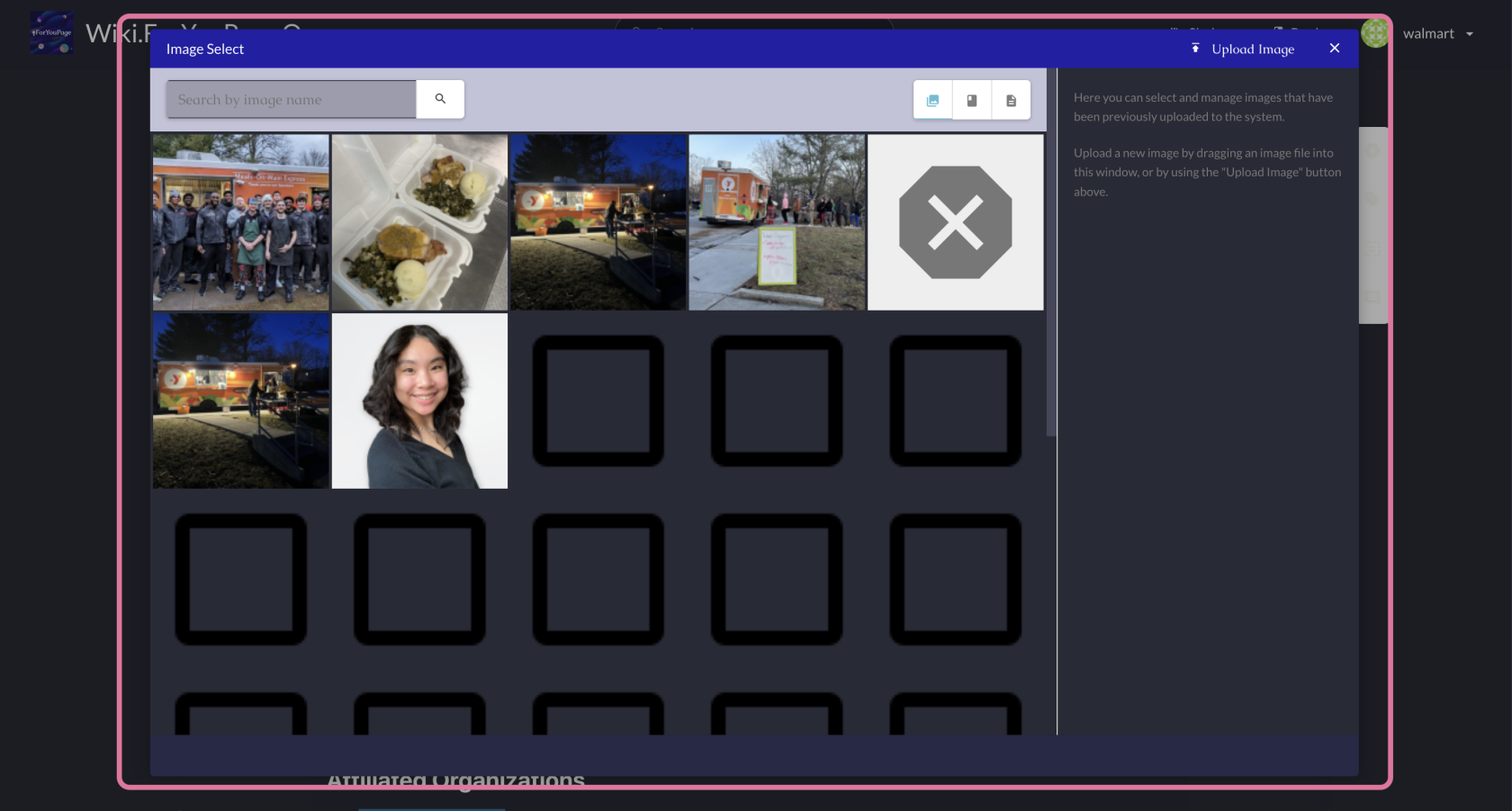
- <span style="color: rgb(255, 255, 255);">Click it and select "Upload" to choose a file from your device.</span>
- <span style="color: rgb(255, 255, 255);">Select your profile picture and confirm the upload.</span>
- <span style="color: rgb(236, 240, 241);">[![wiki 8.png](https://wiki.foryoupage.org/uploads/images/gallery/2024-09/scaled-1680-/GZ4Do76Rlc8jb2iA-wiki-8.png)](https://wiki.foryoupage.org/uploads/images/gallery/2024-09/GZ4Do76Rlc8jb2iA-wiki-8.png)</span><span style="color: rgb(236, 240, 241);">  
    </span>
    - <span style="color: rgb(236, 240, 241);">[![wiki 9.png](https://wiki.foryoupage.org/uploads/images/gallery/2024-09/scaled-1680-/ihts4BTr7hMgPk5p-wiki-9.png)](https://wiki.foryoupage.org/uploads/images/gallery/2024-09/ihts4BTr7hMgPk5p-wiki-9.png)</span>

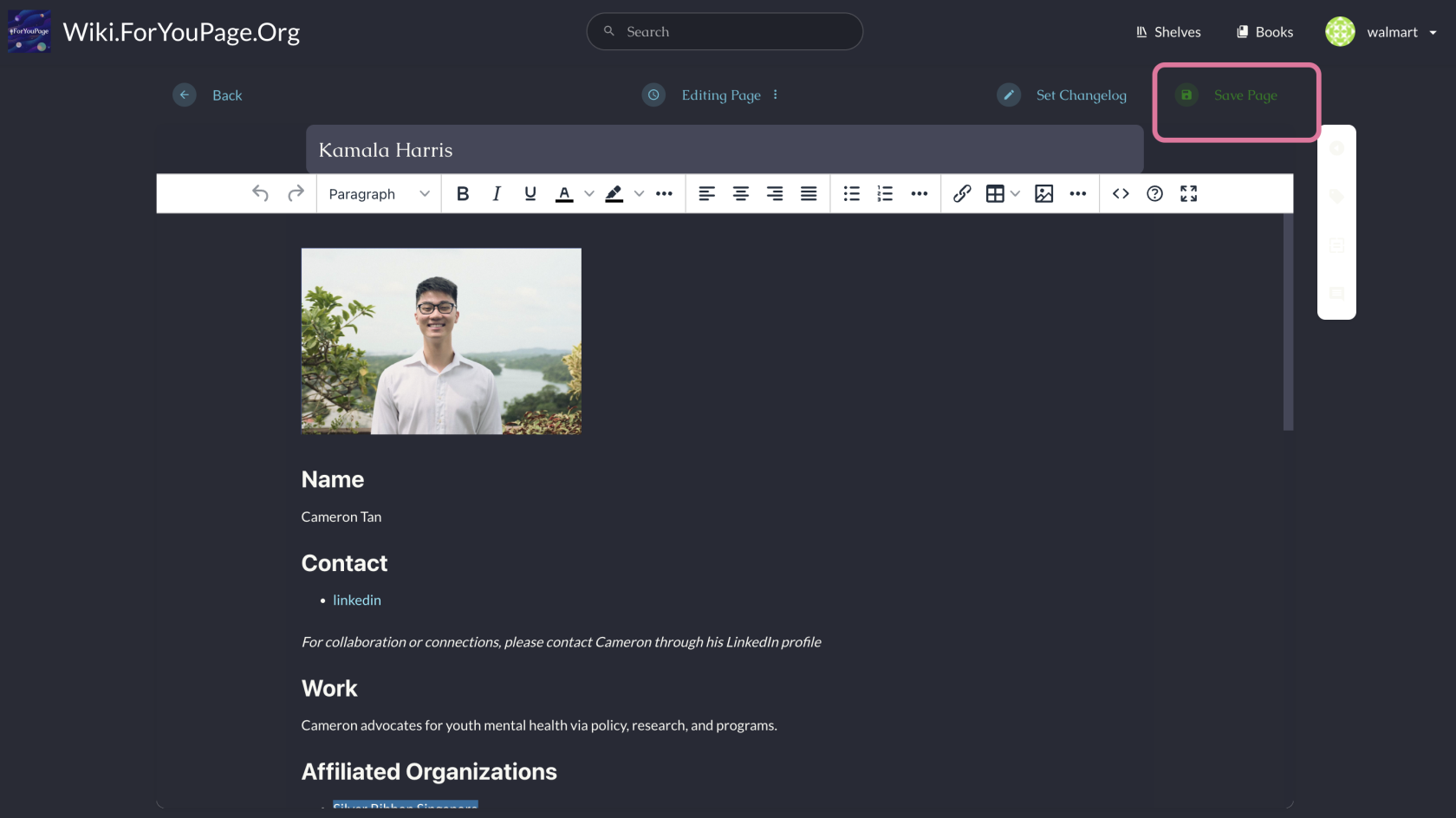
#### <span style="color: rgb(236, 240, 241);">Step 8. Save Your Page</span>

- - <span style="color: rgb(255, 255, 255);">After editing, locate the "Save" button, usually at the top or bottom of the editing interface.</span>
    - <span style="color: rgb(255, 255, 255);">Click this button to save your changes and make your page live.</span>

<span style="color: rgb(236, 240, 241);">[![wiki 10.png](https://wiki.foryoupage.org/uploads/images/gallery/2024-09/scaled-1680-/3xxi77KM99Eoc0Kf-wiki-10.png)](https://wiki.foryoupage.org/uploads/images/gallery/2024-09/3xxi77KM99Eoc0Kf-wiki-10.png)</span>

#### <span style="color: rgb(236, 240, 241);"><span style="color: rgb(255, 255, 255);">Step 9. Review and Edit (Optional)</span>  
</span>

- - <span style="color: rgb(255, 255, 255);">After saving, you'll be taken to the view mode of your page.</span>
    - <span style="color: rgb(255, 255, 255);">Carefully review all the information for accuracy and completeness.</span>
    - <span style="color: rgb(255, 255, 255);">If you need to make changes, click the "Edit" button again, which is typically near the top of the page.</span>

#### <span style="color: rgb(236, 240, 241);">Step 10. Share Your Page</span>

- - <span style="color: rgb(255, 255, 255);">You can now share this link on social media or with your network.</span>